# Information
**About L Market: Your Gateway to Gaming Excellence**\
*Welcome to L Market, your premier destination for unlocking the full potential of your gaming experience. Specializing in enhancements for popular titles like Grand Theft Auto Online, FiveM, CS:GO, and more, L Market is your trusted partner in elevating your gameplay to new heights.*
* **Instant Delivery:** \
*At L Market, we understand that time is of the essence. That's why we prioritize instant delivery, ensuring you can dive into your enhanced gaming experience without delay. Once you've made your purchase, your products are delivered promptly, allowing you to start enjoying the benefits right away.*
* **24/7 Support:** \
*Our commitment to your satisfaction extends beyond business hours. Our dedicated support team is available 24/7 to assist you with any queries or concerns. Whether you need guidance on installation, troubleshooting, or simply have questions about our products, our support team is here to provide prompt and reliable assistance.*
* **Quality Products:** \
*We take pride in offering only the highest quality enhancements for your favorite games. Each product in our catalog undergoes rigorous testing to ensure it meets our standards of excellence. L Market is your assurance of top-notch enhancements that enhance your gaming without compromising integrity.*
* **Secure Transactions:** \
*Your security is paramount. L Market employs state-of-the-art security measures to protect your personal information and ensure that every transaction is secure. Shop with confidence, knowing that your data is safeguarded at every step of the way.*
Join the legion of gamers who trust L Market for instant, reliable, and quality enhancements. Elevate your gaming experience today with L Market — where excellence meets entertainment. Explore our catalog, and let the gaming adventure begin!
# Support
**24/7 Support: Your Gaming Ally Around the Clock**
At L Market, we recognize that your gaming experience is a round-the-clock adventure. Our dedicated support team stands by 24/7, ready to be your reliable companion whenever you need assistance. Whether it's installation guidance, troubleshooting tips, or general inquiries about our products, our support team is committed to delivering prompt and dependable help.
We understand that questions may arise at any time, and we want you to game with confidence, knowing that L Market is here to provide the support you deserve. Your satisfaction is our priority, and our team is just a message away, ensuring that your gaming journey remains seamless and enjoyable, day or night.\
\
**E-Mail**\ ****
**Discord:**\
[**https://lmarket.fr/discord**](https://lmarket.fr/discord)
# How to pay with Paysafecard
Welcome to the tutorial for pay with PaysafeCard
## NOTE
* We only accept Paysafecard's from France, Germany or Austria.
* We use the whole balance of the Paysafecard.
* Paysafe orders take up to 12 hours to be processed.
1. Go to
2. Choose what product you want to purchase and add it to your cart.
3. Press the cart in the top left
4. Press Checkout
5. Scroll down and choose paysafe
6. Select what county your paysafe is from and Paste your paysafe into the "Your code" section.\
\- If you have multiple paysafecodes write a "," inbetween I each code For example 1234-1234-1234-1234,1234-1234-1234-1234
7. Once your have filled out the correct information in your order, press "Place order".
8. Wait for up to 12 hours to get a email with your product.
# How do I become a L Market Affiliate?
A Detailed tutorial on how to become an affiliate
We believe advertising our products through simple yet enjoyable videos is an efficient way to boost our sales and rise in the industry.
Join our team of content creators today! We're on the lookout for talented individuals like you to showcase our menus and help us spread the word. As a content creator, you'll have the opportunity to earn rewards while promoting our products. It's a win-win situation - you get to unleash your creativity and be rewarded for it, while we benefit from your valuable contributions.
* Being an affiliate gives you a link that gives you %5 of all orders solf with your link
1. Go to L Markets [Website](https://lmarket.fr/affiliate/)
2. Fill out information such as Gmail, first name, discord, Lmarket passwords
3. You will get response on gmail with link.
# Refund Policy
If you are considering a refund, please review our refund policy conditions outlined below to determine your eligibility.
#### Conditions for Refunds
1. **Authorization Required:** Refunds are only processed after obtaining authorization from the product creator. As we are solely resellers, we must follow the refund policies set by the product creators. If its technical incompatibility we can process without authorization from the product creator .
2. **14-Day Refund Window:**
* **Digital Products:** You may request a refund within 14 days of purchase, provided that the digital product has not been used.
* **Technical Incompatibility:** If there is a technical incompatibility not specified by the marketplace, you may be eligible for a refund within 14 days of purchase.
3. **Payment Method Restrictions:**
* **Paysafecard:** Payments made using Paysafecard are non-refundable.
* **Credit Card (Stripe):** Refunds for payments made by credit card via Stripe can take between 2 to 14 days to process.
* **PayPal:** Refunds for payments made via PayPal can take up to 72 hours to process.
4. **Non-Refundable CasesBank/PayPal Dispute:**
* **Bank/PayPal Dispute:** If the customer has opened a bank or PayPal dispute.
* **Regret Purchase:** If the customer wishes to cancel their purchase due to a change of mind.
#### How to Request a Refund
To request a refund, please contact our customer service team with the following information:
* Your order number
* The reason for the refund request
* Any supporting evidence (e.g., screenshots of technical issues)
#### Contact Information
If you have any questions regarding our refund policy, please reach out to us at:
Email: \
Phone: +33757836754\
Discord:
We appreciate your understanding and cooperation.
# Terms Of Service
#### 1. Acceptance of Terms
Welcome to Lmarket ! By accessing or using our website (Lmarket.fr) and purchasing license keys through our platform, you agree to comply with and be bound by these Terms of Service (“Terms”). If you do not agree to these Terms, please do not use our services.
#### 2. License Key Purchase
* ***2.1 Product Description :*** Lmarket sells online license keys for various software products. The description of each product, including its features and functionalities, is available on the Site.
* ***2.2 Payment :*** You agree to pay the specified amount for the license key(s) you purchase. Payments are processed securely through Stripe , Paypal And Coinbase Commerce , and your financial information is not stored on our servers.
* ***2.3 Delivery :*** Upon successful payment, you will receive the license key(s) via email or through your Lmarket account. Ensure that the provided email address is accurate to receive timely delivery.
#### 3. Use of License Keys
* ***3.1 Authorized Use :*** The license keys purchased through Lmarket are for your personal or business use and are non-transferable.
* ***3.2 Prohibited Use :*** You may not resell, distribute, or transfer the license keys to third parties without explicit permission from Softwares Administrator . Any unauthorized use may result in the termination of your account and legal action.
#### 4. Refund and Cancellation Policy
* ***4.1 Refunds:*** Refunds are only issued if the license key is proven to be defective or if there is a technical issue preventing its proper use. Requests for refunds must be submitted within 14 days of purchase , Refund Will only be provide if owner of softwares accept it .
* ***4.2 Cancellation :*** Lmarket reserves the right to cancel any order at its discretion. In such cases, you will be notified, and a refund will be issued.
#### 5. Privacy Policy
* ***5.1 Information privacy policy :*** Your privacy is important to us. Please review our [Privacy Policy](https://lmarket.fr/privacy-policy/) to understand how we collect, use, and safeguard your information.
#### 6. Limitation of Liability
* ***6.1 Limitation of liability :*** Lmarket is not liable for any indirect, incidental, special, consequential, or punitive damages arising out of or in connection with the use of our services.
#### 7. Governing Law
* ***7.1 Legal Info :*** These Terms are governed by and construed in accordance with the laws of France. Any disputes arising under or in connection with these Terms shall be subject to the exclusive jurisdiction of the courts in France.
#### 8. Changes to Terms
* ***8.1 Update of terms :*** Lmarket reserves the right to modify or update these Terms at any time. It is your responsibility to review these Terms periodically for changes.
# Prerequisites
# How to download Runtimes
VC Runtime All In One -> [**\[Download\]**](https://download.visualstudio.microsoft.com/download/pr/f1998402-3cc0-466f-bd67-d9fb6cd2379b/A1592D3DA2B27230C087A3B069409C1E82C2664B0D4C3B511701624702B2E2A3/VC_redist.x64.exe)
DirectX Runtme -> [**\[Download\]**](https://www.microsoft.com/en-us/download/details.aspx?id=35)
.Net Framework Runtime -> [**\[Download\]**](https://dotnet.microsoft.com/download/dotnet-framework/thank-you/net472-web-installer)
# How to disable TPM
1. Open Settings -> Update & Security -> Recovery -> Advanced Startup Options
2. Click on *Restart Now*, it will reboot your PC
3. Select Troubleshoot -> Advanced Options -> UEFI Firmware Settings
4. Every BIOS has its own way of implementing the options. Navigate to the Security or Advanced tab and disable TPM
5. Save changes and exit.
# How to disable Secure Boot
1. Open Settings -> Update & Security -> Recovery -> Advanced Startup Options
2. Click on *Restart Now*, it will reboot your PC
3. Select Troubleshoot -> Advanced Options -> UEFI Firmware Settings
4. Every BIOS has its own way of implementing the options. Secure Boot is usually available under Security / Boot / Authentication Tab
5. Save changes and exit.
# How to disable Core Isolation
1. Open Settings -> Windows Security -> Device Security -> Core Isolation Details
2. Turn off Memory Integrity
3. Restart your PC
# How to install Windows Defender Control
1. Download [Sordum Defender Control](https://www.sordum.org/files/downloads.php?st-defender-control)
2. Unzip file with password "sordum"
3. Run defender control as admin
# How to disable Anticheats
{% tabs %}
{% tab title="FaceIT" %}
Open CMD as Admin and type the following:
`sc config faceit start = disabled`
`sc stop faceit`
{% endtab %}
{% tab title="Vanguard" %}
Open CMD as Admin and type the following:
`sc config vgc start= disabled`
`sc stop vgc`
`sc config vgk start= disabled`
`sc stop vgk`
{% endtab %}
{% tab title="EasyAntiCheat" %}
Open CMD as Admin and type the following:
`sc config EasyAntiCheat start= disabled`
`sc stop EasyAntiCheat`
{% endtab %}
{% tab title="BattlEye" %}
Open CMD as Admin and type the following:
`sc config BEService start= disabled`
`sc stop BEService`
{% endtab %}
{% endtabs %}
# HWID Reset
IF you need a HWID reset, make a ticket on the products discord server / website, **NOT** lmarket.\
\
Here are some of our products contact page:\
\
[Anyx](https://discord.com/invite/CzUCunqAH9)
[Assos Premium](https://discord.com/invite/pcM6Fy4XUK)
[Cherax ](https://discord.com/invite/cherax)
[Clutch Solutions](https://clutch-solution.com/)
[Cryptik APK](https://lmarket.fr/discord)
[Disconnect.wtf](https://lmarket.fr/discord)
[Dream client](https://dreamclient.xyz/)
[Dullwave](https://discord.gg/eGZgmRn5ea)
[Eulen](https://discord.com/invite/yRyVukn)
[Exodus](https://discord.com/invite/YVWGTt87E8)
[Fecurity](https://discord.gg/dTpRQ9fd3q)
[Fluent.gg](https://lmarket.fr/discord)
[GoldCore](https://discord.gg/goldcore)
[Kernaim](https://kernaim.to/board/)
[Klar.gg](https://forum.klar.gg/support/)
[Lethal Software](https://lethalcheats.net/login)
[MemeSense](https://memesense.gg/auth/login)
[Mesa Changer](https://mesachanger.com/forum/)
[Midnight](https://midnight.im/usercp/tickets/)
[Neverlose](https://forum.neverlose.cc/)
[Ombra](https://lmarket.fr/discord)
[Onyx](https://discord.gg/2hbKa2PSX6)
[Ovix](https://discord.com/invite/2px7DbyWrn)
[Plague Cheats](https://discord.com/invite/Q3wwsppKjA)
[Predator](https://discord.com/invite/Q3wwsppKjA)
[Ring-1](https://ring-1.io/faq/)
[Stand](https://stand.sh/)
[Stern](https://discord.gg/CwmacfgTk4)
[Susano](https://discord.com/invite/susano)
[Swan](https://discord.gg/swan)
[TZ Project](https://tzproject.com/)
[Undetek](https://discord.com/invite/Ez93JhPTpP)
[Unlock All](https://lmarket.fr/discord)
[Vanity](https://vanitycheats.xyz/forum/pages/Discord/)
[VMX](https://discord.gg/xnEn7VKjZg)
[Wraith ](https://wraith.su/)
[Wave ](https://discord.com/invite/ZSFggURAM8)
[Xone](https://xone.fun/en)
# Information
Information about FiveM
Welcome to this FiveM documentation.
* You can find all products in this category here:
* Want to know more? Join our discord:
# Status
Welcome to the Status page, here you can find status of every product.
* [Redengine Executor / Spoofer](https://redengine.net/status)
* [TZ / TZX](https://tzproject.com/status)
* Phaze / Lumia, Join redengine private discord
* [Eulen](https://eulenc.com/status/)
* [Susano](https://discord.com/invite/susano)
* [Hx Cheats](https://discord.com/invite/hxsoftwares)
# Eulen
# What is Eulen?
Eulen is a Internal PvP and Utility sofware, it has many features such as lua executor, triggers, dumper, silentaim, aimbot, esp, spawning guns and much more. Eulen works best for people who play on servers without anticheats since many of its features can get you banned from the server if the it has one. It also comes with a spoofer that can spoof any fivem server or cfx ban.
{% embed url="" %}
# How do i use Eulen?
How to use Eulen Lua Executor:
{% embed url="" %}
How to use Eulen Spoofer:
{% embed url="" %}
# Common bugs & fixes
## Game is crashing
**1** - Make sure you are running FiveM in Fullscreen mode.
**2** - Make sure your FiveM is in release mode, Eulen does not support beta/unstable mode. 
**3** - Make sure you have windows defender in real time disabled.
**4** - If you have any type of antivirus, disable it completely.
**5** - Make sure everything is up to date, windows, drivers, video card.
**6** - Try clearing your FiveM cache folder. (search on youtube *how to clean fivem cache*)
**7** - Make sure you are injecting when you are on the FiveM menu (server list)
**8** - Make sure your Steam Overlay is working on FiveM.
**9** - Apps running in the background can interfere with performance and cause crashes, so avoid using applications that the background is animated, close launchers such as origin, ubisoft, epic games, Riot Vanguard, Faceit anti cheat, terminate unnecessary applications, do not let anything hinder the performance of FiveM.
**10** - Graphic mods, unfortunately any kind of graphic mod in FiveM can cause usage conflicts with Eulen.
## "msvcp140.dll" error
If you are having an error related to 'msvcp140.dll' you probably have reinstalled Windows recently and are now in need of dlls. You can solve this problem by [downloading this file](https://aka.ms/vs/16/release/vc_redist.x64.exe).

## "Invalid HWID. Ask for a reset." error

If you have this HWID error it is because you have probably modified something on your PC, or you are using a different PC. In this case you need to [fill out the HWID reset form by clicking here](https://eulen.cc/HWIDReset), fill it in correctly only once and wait, you will be notified by email when your reset is completed. (also check your spam folder)
## Crashing after last update
An important note is that apparently at the moment the graphic mod RESHADE is causing conflict with Eulen, so if you have the reshade mod you must uninstall it to be able to use Eulen.
We are working to support reshade as soon as possible, but at the moment if you have it installed you should remove it.
In this guide we provide a [video tutorial](https://youtu.be/fK3BCTyIkaA) on how to uninstall reshade correctly.
### To make sure Eulen really works, follow this checklist:
**1** - Make sure Steam Overlay is actually enabled on your FiveM. (To check this, just have Steam open, start FiveM, in the FiveM menu press **TAB + SHIFT**, if the Steam panel appears, it means your Steam overlay is working 100%).
**2 -** Only for those who have Reshade installed, follow this video to uninstall it correctly. **(if you don't have the graphic mod reshade just skip this step)**
**Video to remove reshade correctly:**
**3** - Make sure your FiveM is in release mode, Eulen does not support beta/unstable mode. 
**4** - Try setting your FiveM Screen Type to **Windowed** mode, then restart FiveM and try using Eulen.

5 - Make sure you are using DirectX 11 on FiveM.

# More Links
Eulen Telegram:
Eulen Discord:
Eulen Website:
# Susano
# What is Susano?
## Spoofer is included!
### Packed with fun features!
Designed and packed with fun features! Immerse yourself in an unparalleled experience as you explore the dynamic array of entertaining functionalities that this product has to offer.
### Safe gameplay
Always two steps ahead of solutions that might disrupt your experience!
### Stream-proofing
OBS & other major recording softwares are supported by our streamproofing!
### Complexity made simple
We are confident that you will value the design of our software, as it offers ease of use and user-friendly functionality. This actively demonstates our commitment to simplicity and efficiency in every interaction.
{% embed url="" %}
{% embed url="" %}
# How do I use Susano?
## Susano menu
#### Video tutorial:
{% embed url="" %}
## Susano Spoofer
1. **Login to a Local Windows Account**\
Switch to a local Windows account if you are using a Microsoft account to log in.
2. **Deauthorize FiveM from Discord**\
Disconnect FiveM from your Discord account to prevent it from tracking your identity.
3. **Logout of Steam**\
Log out of Steam and completely close the application to avoid it interfering with the spoofing process.
4. **Uninstall Xbox Apps**\
Remove all Xbox-related applications from your PC using **Revo Uninstaller**:
* [Download Revo Uninstaller](https://www.revouninstaller.com/fr/products/revo-uninstaller-free/)
* This will ensure that Xbox services aren’t sending information that could expose your identity.
5. **Unlink Rockstar Account**\
In the spoofing loader, ensure that the **Unlink Rockstar** option is checked. This will remove any associations with your previous Rockstar account.,
6. **Perform the Sp000fing Process**\
Follow the instructions from your spoofing tool to sp00f your hardware identifiers and IP.
7. **Important Note: Restart for Protected Games**\
If you plan to play on a game that uses anti-ch34ts like **EAC, BE, Vanguard,** or **FACEIT**, **restart your computer** after spoofing.
# Common bugs & fixes
## Driver didn't load properly / Bluescreening (BSOD) upon load
Disable any anti-virus and anti-cheat running and restart your pc will most likely fix it. Make sure to use a supported windows version (listed under in the FAQ section.). If these fixes are not working for you, contact the support through the customer discord.
## d3dx11\_43.dll/d3dcompiler\_43.dll
* Download and install latest version of [DirectX](https://download.microsoft.com/download/1/7/1/1718CCC4-6315-4D8E-9543-8E28A4E18C4C/dxwebsetup.exe) (click)
## Infinite loading
* Disable all antivirus software (uninstall if necessary).
* Uninstall any anticheat programs. (EAC, Vanguard, FACEIT etc.)
* Restart your computer
## System enviroment is not securly set up
* Move the loader to different folder
## An error occured while spoofing
1. **Update NVIDIA Drivers**: Ensure your NVIDIA drivers are up-to-date for optimal performance.
2. **Sync Date & Time**: Adjust your device's date and time settings to the current standard.
3. **Contact Support**: Open a ticket on the customer Discord to reach the staff.
### Anticheat to uninstall:
Vanguard
Faceit
ESEA
### Anti virus to uninstall:
Kaspersky
Malwarebytes (only if disabling doesnt fix)
Other anticheat/antivirus just need to be disabled
## An error occured while initializing the requested game.
Disable any VPN along with your firewall.
## I am crashing
Make sure to follow every requirements to run susano. If that doesn't work please contact the support through the customer discord
## Error message when launching FiveM or joining a server
1. **Restart Your Computer**\
Before proceeding with any other troubleshooting, restart your computer. Many issues can be solved by a simple reboot.
2. **Uninstall Conflicting Software**
* **Vanguard (Riot Games Anti-Ch34t)**: If installed, remove it from your system.
* **FACEIT Anti-Ch34t**: If installed, uninstall it.
* **Kaspersky**: Uninstall if it's running.
* **MalwareBytes**: Disable this temporarily to see if it resolves the issue.
* **Windows Defender**: Disable by following this link: [Disable Windows Defender](https://www.sordum.org/downloads/?st-defender-control) (Password: sordum).
* **Other Anti-Virus Software**: Temporarily disable or uninstall any additional antivirus software to avoid conflicts.
,
3. **Disable Core Isolation**\
Navigate to **Windows Security** > **Device Security** > **Core Isolation** and turn it off. For more details, see the screenshot [here](https://susano.re/cdn/coreisolation.png).
4. **Reinstall FiveM**
* Make sure you reinstall FiveM in the correct folder:
* **Installation Path**: `%localappdata%`
* After reinstalling, restart your computer to finalize the changes.
Then video explanation:
# More Links
Website:
Discord:
# redEngine
# What is redEngine Executor?
redEngine Executor is an Lua executor for fivem containing options like as lua executor, dumper, event logger, esp, aimbot, friend list. You can also use premium such as Nexus and Lumina but also free menus that come with the executor.
{% embed url="" %}
# What is redEngine Spoofer?
RedEngine spoofer is the best and most reliable spoofer in the market for FiveM, you can get unbanned from fivem cfx bans, you can also be unbanned on all fivem servers and anticheats.
Redengine is a temporary spoofer which means that you need to run it every time you start your computer.
# How do I use redEngine Executor?
## First Use
A guide for those using redENGINE Lua executor for the first time.
**Step 1:** Create an account on then go to clients area and click on the “Redeem” button and put your key.
**Step 2:** After having Redeem your key clicked on the “Download” button in your client area, then you must extract the folder to your desktop
**Step 3:** Open redEngine & FiveM.
**Step 4:** Open redENGINE and inject it and wait about 10/30 seconds in FiveM and press INSERT or F11 to verify that redENGINE is injected, if it is not injected then [check here](https://redengine-docs.instant-modz.com/lua-executor/known-error)
**Step 5:** Then after having injected redENGINE join any FiveM server, after having passed the loading screen and you have spawned you can use redENGINE and have fun!
###
# How do I use redEngine Spoofer?
## First Use
A guide for those using redENGINE Spoofer for the first time.
**Step 1:** Create an account on then go to clients area and click on the “Redeem” button and put your key. **(YOUR KEY IS IN YOUR EMAIL)**
**Step 2:** After having Redeem your key clicked on the “Download” button in your client area, then you must extract the folder to your desktop
## Spoof Tutorial
{% embed url="" %}
# Common bugs & fixes
## Launcher close after "Requesting Injection".
* Delete the file `settings.cock` from the folder where is the program and then try to inject again!
## This version of the game is not supported...
* You cannot run redENGINE without adhesive.dll on your FiveM files, you need to reinstall fivem to run it again.
## Fix for nothing happens when you try open launcher.
* redENGINE launcher cannot be opened from folder which is in OneDrive or has symbols. Move it to C: to fix it.
* Right click the launcher then press run compatability thing. Then it says "No issues found" but you can press try reccomended options.
## Fixes for when someone presses fix Bliking and the game crashes.
* Restart Fivem and rE, and press fix bliking before and after injecting the menu.
* If step2 doesnt works, you need to remove modified resolutions, remove reShade and modified citizens.
* Try again and dont spam the fix bliking button.
## Error connecting to the server!
**Error:** "Details: A connection attempt failed because the connected party did not properly respond after a period of time, or established connection failed because connected host has failed to respond."
* This error happens when the client ISP or any aplication you have is blocking the connection, using vpn may solve it.
## redENGINE injected sucessfuly but doesnt appears when I click on F11 or INSERT
* Go to GTA V folder there is a file called imgui.ini, open it and delete every thing inside it and save the file, now open red engine and fivem again and make sure steam overlay is enabled after that it should be fixed.
## Fixes for .dll Errors
The program can't start because `###.dll` is missing from your computer. Try reinstalling the program to fix this problem. This gets fixed by installing DirectX runtime files, this are the more commons that miss on your computer:
**Fix 0xc0000007b.** - Install and put in System32 - `C:\Windows\System32`
**Fix d3dx9\_43.dll & xinput1\_3.dll** - Install and execute this.
**Fix Vcruntime140.dll.** - Install and execute this.
If these don't work try the following links: &
## Fix for Injection error #70
* This mostly happens because some Anti Virus or firewall is "protecting" your pc. Disabling only the Anti Virus or the firewall, cannot make difference, try uninstalling any Anti Virus you have on your pc.
## Massive Fail while injecting #44 - Stage: 12!!
* Reinstall FiveM!
* Change your FiveM version from "Beta"/"Latest (Unstable)" to "Release"!
* Verify GTA V game files and Windows files!
* Make sure you didn't already injected, restart FiveM and inject again!
* Try to inject redENGINE from the server list.
* Try to uninstall graphics packs if you have any installed.
## Massive Fail while injecting #41 - Stage: 5!
* Delete file `settings.cock` **in your redengine FOLDER** and try again!
* Verify your GTA files!
* Verify your windows files by opening CMD as an admin and type: `sfc /scannow`
## Injection Failed (Stage: 12), please try again..
* Disable exploit protection and any type of Anti Virus or FireWall. Also make sure your FiveM is on "Release".
* If using latest Windows 11 version/beta you need to downgrade to different version of Windows 11 or back to Windows 10.
## Fix for Error #2
* Try to check if your internet connection is stable.
* Disable firewall.
* Use VPN for example NordVPN.
## "Details: 1006 TLS handshake failed"
* Redownload redEngine.
## Process wasn't found. Is the game open? #1
* FiveM cannot be named FiveM(1).exe, it needs to be named FiveM.exe
* Make sure your FiveM.exe is on your C: drive.
### An error occurred while contacting the server...
* Delete SSLKEYLOGFILE
## You can't login using this device!
* You can't use redENGINE on a virtual machine.
## Massive fail while privacy protecting - Stage: 10!! Try again...
* Uninstall FiveM and all FiveM related files from `C:\Users\Administrator\AppData\Local\FiveM`
* If its not there, find where it is and uninstall all files, then redownload FiveM and install it, choose the install path to this one `C:\Users\Administrator\AppData\Local\FiveM` should work!
## Massive fail while loading privacy protect - Stage 9!! Try again...
* Download this:
## Failed to get FiveM folder from path #2.
* Reinstall FiveM
## Massive fail while privacy protecting #6!! Try again...
* Windows Username Probably Has Special Character `ëüöä`!
## Massive fail while Spoofing #3!! Try again.. / Massive fail while injecting #3 Stage: 5 Try again..
1. Go to Windows Security, Device Security, Core Isolation Details, Disable Core Isolation and Microsoft Vulnerable Driver Blocklist.
2. Restart your pc.
* Uninstall Kaspersky Antiviruys
* Uninstall FaceIt/Vanguard!
* Download and run the 3.reg file at the bottom of this document
If it still doesnt work:
* Run [this](https://www.mediafire.com/file/2z7q8kstkon7mmn/3.bat/file) file twice as administrator.
* In one put Yes, in the other put No.
* Restart PC.
If it still doesnt disable these settings on the screenshot:
if it still doesnt work you must format your pc using windows iso not from “Reset This PC” from settings.
{% file src="/files/i5NbHYJEZHSRzcPGUsKv" %}
# More Links
Redengine website:
Redengine Discord (public): [https://discord.gg/redenginenet
]()
# TZ
# What is TZ?
## **SPOOFER INCLUDED WITH LIFETIME KEYS**
**TZ - Internal Utility / Troll / PvP Software**
> Designed for players looking for a more relaxed or casual experience. Integrated directly into the game, so no complicated installations needed. Fewer customizable settings compared to external software. Generally has more limited features, but sufficient for most casual players. Less sensitive to latency or lag issues as it is optimized to work with the specific game.
{% embed url="" %}
# How do I use TZ?
### Getting started with TZ
1. Once you get the key after purchasing, register an account the TZ [website](https://tzproject.com/).
2. Go to your [account page](https://tzproject.com/account) and press "Redeem Code", paste the key you bought into the text box and press the checkmark.
#### Injecting
1. [Disable](https://www.youtube.com/watch?v=CLIjr7FyxZ8) or uninstall your antivirus.
2. Go to your [account page](https://tzproject.com/account) and press "Download Software", choose TZ.
3. Unzip the TZ.zip file.
4. Make sure Steam is running
5. Run the chrome.exe file inside the TZ folder.
6. Wait until in says "You can open the game ...".
7. Open Fivem.
8. A menu will pop up where you will log in using your TZ Project credentials.
# Common bugs & fixes
Error #0 - TZ Init Window
1. [Install DirectX](https://www.microsoft.com/en-us/download/details.aspx?id=35) and ensure the latest version is installed.
2. [Update Graphics Drivers](https://support.microsoft.com/en-us/help/4028443/windows-10-update-drivers). Use the latest drivers for your GPU ([Nvidia](https://www.nvidia.com/en-us/software/nvidia-app/), [AMD](https://www.amd.com/en/products/software/adrenalin.html)).
3. [Install Visual C++ Redistributables](https://www.techpowerup.com/download/visual-c-redistributable-runtime-package-all-in-one/).
4. Restart your computer after completing the installations and try again.
Error #1 - TZ Can't Resolve HWID
1. Restart the computer to resolve temporary issues.
2. [Check hardware drivers](https://www.driverscloud.com/en) and ensure they are up to date.
3. Run the application as administrator to ensure proper permissions.
4. Disable any security software temporarily to avoid interference.
Error #2 - Update TZ or Check If It Is Not Under Maintenance
1. Update TZX or Check If It Is Not Under Maintenance.
2. Use a VPN.
Error #3 - Can't Enable Privilege
1. Switch to a Windows account with administrative rights.
2. Right-click the application and select "Run as administrator".
3. Modify compatibility settings:
* Right-click the application.
* Select "Properties".
* Go to the "Compatibility" tab.
* Check "Run this program as an administrator".
4. Ensure [User Account Control (UAC)](https://support.microsoft.com/en-us/windows/user-account-control-settings-d5b2046b-dcb8-54eb-f732-059f321afe18#:~:text=You%20can%20change%20the%20UAC,OK%20to%20save%20your%20changes.) is not blocking the application.
Error #4 - Open TZ Before FiveM
1. Close FiveM if it is running before launching TZX.
2. Launch TZX first, then open FiveM to avoid process conflicts.
3. Check background processes:
* Open Task Manager (Ctrl + Shift + Esc).
* End any FiveM-related processes.
4. Restart your computer to close active processes and prevent conflicts.
Error #5 - Invalid Process
1. Restart the game to reset the process.
2. Verify the game files using the platform (e.g., Steam). For FiveM, ensure all necessary files are intact.
3. Update the game to the latest available version.
4. Disable recent mods or modifications that may cause compatibility issues.
5. Ensure FiveM is launched with the required anticheat enabled.
Error #6 - Hooking Fails
1. Ensure the application is compiled in release mode, not debug mode.
2. Temporarily disable security software, as some antivirus programs may block hooking.
3. Run the application with administrative privileges.
4. Update the application to the latest version, which may include fixes for this issue.
Error #7 - Inaccessible Window TZ
1. Log in with a Windows account that has administrative rights.
2. Run the application as administrator by right-clicking and selecting "Run as administrator".
3. Check [UAC settings](https://support.microsoft.com/en-us/windows/user-account-control-settings-d5b2046b-dcb8-54eb-f732-059f321afe18) to ensure User Account Control is not blocking the window.
4. Close unnecessary applications that may lock the target window.
Error #8: Steam Needed
1. Open Steam before starting TZX.
2. Ensure Steam is installed and updated.
3. Log into your Steam account.
4. Restart TZX after Steam is running.
Error #9: FiveM Not Found - Open FiveM Before TZ
1. Close FiveM if it is running before launching TZX.
2. Launch TZX first, then open FiveM to avoid process conflicts.
3. Check background processes:
* Open Task Manager (Ctrl + Shift + Esc).
* End any FiveM-related processes.
4. Restart your computer to close active processes and prevent conflicts.
Error #10: Initializing Game Information - Verify Compatibility with TZ and FiveM Build
1. Check TZX and FiveM compatibility with your game version.
2. Update TZX and FiveM to the latest versions.
3. Verify game files (e.g., via Steam).
4. Reinstall TZX if needed.
5. Check compatibility lists on TZ Discord.
6. Fully reinstall FiveM, including the installer.
Error #11: Initializing Game Information - Verify Compatibility with TZ and FiveM Build
1. Uninstall Vanguard.
Error #S01: Steam Needed
1. Open Steam before launching TZ.
2. Update Steam if required.
3. Restart FiveM and TZ.
4. Ensure a stable internet connection.
Error #H01: Software Issue Detected
1. Use a compatible FiveM version.
2. Switch from canary/beta to release version.
3. Reinstall TZX and FiveM if the issue remains.
P - Data Initialisation failed
1. Join a different server with a higher build, we only support builds above 2600
## Laggy ESP
1. Enable V-sync on TZ
## FiveM Needs To Restart
1. Right-click on the FiveM launcher
2. Press `Open file location`
3. Make a new shortcut from the `Fivem.exe` and drag it to your desktop
4. Right click the new shortcut and select `Properties`
5. Press `Shortcut` and locate the `Target` box At the **END** of the target box, put a **space** then type -pure\_*X* -b*YYYY*
6. Find the server build and what pure mode it runs on. (This should say in the restart message when you try to join the server)
7. Replace the *X* with the pure mode the you found earlier (ex. 0, 1, 2) and *YYYY* with the server build (ex. 3095, 2699, 2944) Example: "C:\Users\Axel\AppData\Local\FiveM\FiveM.exe -pure\_1 -b2699"(do not copy paste this)
## TZ Loader has been updated!
1. Redownload TZ
2. Switch from canary/beta to release version.
3. Reinstall TZ and FiveM if the issue remains.
## Crash while loading into fivem server
1. Redownload TZ
## TZ Not Finding FiveM
1. Uninstall OneDrive.
2. Make sure FiveM is properly installed in AppData.
3. Do not use a custom OS.
## Can't Enable 2FA
1. This is because you verified your email from a different device than your pc. Skip the 2FA activation during download (bottom right button).
## Not Injecting?
1. Sync Windows time.
2. Uninstall antivirus, all external anti-cheats, and OneDrive.
## HWID Missmatch SPOOFER
1. Launch the Spoofer again, it will work.
# More Links
Website:
Discord:
# TZX
# What is TZX?
## **SPOOFER INCLUDED WITH LIFETIME KEYS**
#### TZX - External PvP Software
> TZX is fully undetected since it is external, it's for players who are looking for a PVP only cheat. It is extremely customizable and has features such as aimbot, silentaim, triggerbot, hitchance, magicbullet, esp, radar, caresp and much more. TZX is also fully streamproof for OBS, Windows and discord. It also hides itself on your computer.
{% embed url="" %}
# How do I use TZX?
### Getting started with TZX
1. Once you get the key after purchasing, register an account the TZ [website](https://tzproject.com/).
2. Go to your [account page](https://tzproject.com/account) and press "Redeem Code", paste the key you bought into the text box and press the checkmark.
#### Injecting
1. [Disable](https://www.youtube.com/watch?v=CLIjr7FyxZ8) or uninstall your antivirus.
2. Go to your [account page](https://tzproject.com/account) and press "Download Software", choose TZX.
3. Unzip the TZX.zip file.
4. Make sure Steam is running
5. Run the svhost.exe file inside the TZX folder.
6. Log in using your TZ Project credentials
7. Once it says "Waiting For Fivem ..." launch Fivem
8. Wait for 20 seconds and you will be injected
# Common bugs & fixes
Error #0 - TZX Init Window
1. [Install DirectX](https://www.microsoft.com/en-us/download/details.aspx?id=35) and ensure the latest version is installed.
2. [Update Graphics Drivers](https://support.microsoft.com/en-us/help/4028443/windows-10-update-drivers). Use the latest drivers for your GPU ([Nvidia](https://www.nvidia.com/en-us/software/nvidia-app/), [AMD](https://www.amd.com/en/products/software/adrenalin.html)).
3. [Install Visual C++ Redistributables](https://www.techpowerup.com/download/visual-c-redistributable-runtime-package-all-in-one/).
4. Restart your computer after completing the installations and try again.
Error #1 - TZX Can't Resolve HWID
1. Restart the computer to resolve temporary issues.
2. [Check hardware drivers](https://www.driverscloud.com/en) and ensure they are up to date.
3. Run the application as administrator to ensure proper permissions.
4. Disable any security software temporarily to avoid interference.
Error #2 - Update TZX or Check If It Is Not Under Maintenance
1. Update TZX or Check If It Is Not Under Maintenance.
2. Use a VPN.
Error #3 - Can't Enable Privilege
1. Switch to a Windows account with administrative rights.
2. Right-click the application and select "Run as administrator".
3. Modify compatibility settings:
* Right-click the application.
* Select "Properties".
* Go to the "Compatibility" tab.
* Check "Run this program as an administrator".
4. Ensure [User Account Control (UAC)](https://support.microsoft.com/en-us/windows/user-account-control-settings-d5b2046b-dcb8-54eb-f732-059f321afe18#:~:text=You%20can%20change%20the%20UAC,OK%20to%20save%20your%20changes.) is not blocking the application.
Error #4 - Open TZX Before FiveM
1. Close FiveM if it is running before launching TZX.
2. Launch TZX first, then open FiveM to avoid process conflicts.
3. Check background processes:
* Open Task Manager (Ctrl + Shift + Esc).
* End any FiveM-related processes.
4. Restart your computer to close active processes and prevent conflicts.
Error #5 - Invalid Process
1. Restart the game to reset the process.
2. Verify the game files using the platform (e.g., Steam). For FiveM, ensure all necessary files are intact.
3. Update the game to the latest available version.
4. Disable recent mods or modifications that may cause compatibility issues.
5. Ensure FiveM is launched with the required anticheat enabled.
Error #6 - Hooking Fails
1. Ensure the application is compiled in release mode, not debug mode.
2. Temporarily disable security software, as some antivirus programs may block hooking.
3. Run the application with administrative privileges.
4. Update the application to the latest version, which may include fixes for this issue.
Error #7 - Inaccessible Window TZX
1. Log in with a Windows account that has administrative rights.
2. Run the application as administrator by right-clicking and selecting "Run as administrator".
3. Check [UAC settings](https://support.microsoft.com/en-us/windows/user-account-control-settings-d5b2046b-dcb8-54eb-f732-059f321afe18) to ensure User Account Control is not blocking the window.
4. Close unnecessary applications that may lock the target window.
Error #8: Steam Needed
1. Open Steam before starting TZX.
2. Ensure Steam is installed and updated.
3. Log into your Steam account.
4. Restart TZX after Steam is running.
Error #9: FiveM Not Found - Open FiveM Before TZX
1. Close FiveM if it is running before launching TZX.
2. Launch TZX first, then open FiveM to avoid process conflicts.
3. Check background processes:
* Open Task Manager (Ctrl + Shift + Esc).
* End any FiveM-related processes.
4. Restart your computer to close active processes and prevent conflicts.
Error #10: Initializing Game Information - Verify Compatibility with TZX and FiveM Build
1. Check TZX and FiveM compatibility with your game version.
2. Update TZX and FiveM to the latest versions.
3. Verify game files (e.g., via Steam).
4. Reinstall TZX if needed.
5. Check compatibility lists on TZ Discord.
6. Fully reinstall FiveM, including the installer.
Error #11: Initializing Game Information - Verify Compatibility with TZX and FiveM Build
1. Uninstall Vanguard.
Error #S01: Steam Needed
1. Open Steam before launching TZ.
2. Update Steam if required.
3. Restart FiveM and TZ.
4. Ensure a stable internet connection.
Error #H01: Software Issue Detected
1. Use a compatible FiveM version.
2. Switch from canary/beta to release version.
3. Reinstall TZX and FiveM if the issue remains.
P - Data Initialisation failed
1. Join a different server with a higher build, we only support builds above 2600
## Laggy ESP
1. Enable V-sync on TZX
## FiveM Needs To Restart
1. Right-click on the FiveM launcher
2. Press `Open file location`
3. Make a new shortcut from the `Fivem.exe` and drag it to your desktop
4. Right click the new shortcut and select `Properties`
5. Press `Shortcut` and locate the `Target` box At the **END** of the target box, put a **space** then type -pure\_*X* -b*YYYY*
6. Find the server build and what pure mode it runs on. (This should say in the restart message when you try to join the server)
7. Replace the *X* with the pure mode the you found earlier (ex. 0, 1, 2) and *YYYY* with the server build (ex. 3095, 2699, 2944) Example: "C:\Users\Axel\AppData\Local\FiveM\FiveM.exe -pure\_1 -b2699"(do not copy paste this)
## TZ Loader has been updated!
1. Redownload TZX
2. Switch from canary/beta to release version.
3. Reinstall TZX and FiveM if the issue remains.
## Crash while loading into fivem server
1. Redownload TZX
## TZ Not Finding FiveM
1. Uninstall OneDrive.
2. Make sure FiveM is properly installed in AppData.
3. Do not use a custom OS.
## Can't Enable 2FA
1. This is because you verified your email from a different device than your pc. Skip the 2FA activation during download (bottom right button).
## Not Injecting?
1. Sync Windows time.
2. Uninstall antivirus, all external anti-cheats, and OneDrive.
## HWID Missmatch SPOOFER
1. Launch the Spoofer again, it will work.
# More Links
TZ Project website:
TZ Project Discord:
# Phaze Menu
# What is Phaze?
Phaze is a premium menu for redEngine executor.
{% embed url="" %}
# How do I use Phaze?
1. Redeem your key at [
]()
2. Inject redEngine Lua Executor [How do I use redEngine Executor?](/fivem/redengine/how-do-i-use-redengine-executor)
3. Load Phaze in the redEngine menu
# More Links
Discord:
# Lumia Menu
# What is Lumia?
Lumina is a premium menu for redEngine executor.
{% embed url="" %}
# How do I use Lumia?
* Redeem your key at [ ]()
* Inject redEngine Lua Executor
* Load Lumina in the redEngine menu
# More Links
Discord:
# Hx Cheats
# What is Hx cheats?
## Undetected
Our product offers high-quality features and functionalities at an affordable price.
## Affordable
Our software provides a seamless gaming experience without the risk of being banned.
## Quality
Our FiveM cheat ensures a smooth gaming experience, enhanced with advanced safety and security features.
## Customization
Our FiveM cheat offers extreme customization options for optimal gameplay and domination of opponents.
## Protected data
Our FiveM cheat safeguards your data and ensures confidentiality and privacy.
## Easy to install
Our FiveM cheat takes only 4 clicks to install, how great ?
## Showcase:
{% embed url="" %}
# How do I use Hx Cheats?
All instructions on discord:
## Tutorial:
{% embed url="" %}
# More Links
Website:
Discord:
# Information
Information about the CS2 Cheats
Welcome to this CS2 documentation.
* You can find all products in this category here:
* Want to know more? Join our discord:
# Status
* [Midnight](https://midnight.im/store/)
* [MemeSense](https://memesense.gg/forums/2)
* [Neverlose](https://neverlose.cc/product?type=cs2)
* [Xone](https://xone.fun/en)
* [Plague Cheats](https://plaguecheat.cc/forum/forums/updates.32/)
* [Cartel External](https://cartelcheats.com/forums)
* [Predator Systems](https://t.me/predator_systems)
* [Anyx](https://anyx.gg/forums/news.2/)
* [Kernaim](https://kernaim.to/status)
* [Fecurity](https://t.me/fecstatus)
* [Clutch Solutions](https://clutch-solution.com/status/)
* [Undetek Skin changer](https://undetek.com/cs2-cheats/)
# Anyx
# What is Anyx?
Here is all the information you need to know about the product before buying it.
### Aimbot for Counter-Strike 2
#### Dominate the game with our aimbot for CS2 and be the topfrager in your team!
Our CS2 Aimbot is very accurate and reliable. Just the right tool to keep a cool head in stressful situations. An aimbot is one of the most important features in Counter-Strike 2 cheats, because it is crucial that firstly the aimbot works properly and secondly it is not detected by the opponents. That's why our CS Aimbot is the right choice because we provide you with the right features.
### Visuals / ESP
#### Knowing more is a huge advantage! Visualize your enemies!
We provide you with various visuals such as Wallhack, ESP and Visuals for Counter-Strike 2. You can freely adjust all visuals to your liking and also change all colors. A CS2 wallhack is very powerful and therefore should be used very wisely. Therefore, we recommend certain ESP features that show you useful information about your opponents, such as a healable, the weapon the opponent has and the name of the opponent.
### CS2 Grenade helper
#### Throw grenades on every map like a pro!
With our CS2 Grenade Helper you can easily save spots so that you don't lose any time during a stressful game and can throw every nade perfectly. Your teammates will love you for it. With the Grande Helper all your teammates will believe that you are really experienced and a very good player. You can save an infinite number of spots - and the Grenade Helper works on every Counter-Strike 2 map!
The advantages of the Grenade Helper for CS2 are obvious. From now on you no longer have to memorize grenade spots but simply save them. And from now on you will throw every nade perfectly!
{% embed url="" %}
# How do I use Anyx?
1. Make an account on:
2. Redeem the key at:
3. You can read the instructions and download the loader from this link: , It is only available after redeeming the key.
# More Links
All Anyx's Links
Website:
Discord:
# Cartel External
# What is Cartel?
Here is all the information you need to know about the product before buying it.
#### Undetected Cheats
Due to sophisticated technology, all cheats that we provide are actually undetected and safe.
#### Leading Provider
Established in 2017, we soon became the leading cheat provider for BattlEye and EAC games.
#### Instant Access
Signing up and checking out is simple and fast. We don’t require verification by selfie or ID for our public products.
{% embed url="" %}
# How do I use Cartel?
## Redeeming Your License
1. Visit the and register an account
2. Go in account category
### Install the Loader
1. Redeem your key on the account page
2. Disable your antivirus
3. Download and run the loader
4. Follow instructions in loader.
# More Links
All Cartel's Links
Website:
# Clutch Solutions
# What is Clutch Solutions?
Here is all the information you need to know about the product before buying it.
You want the best cheat experience? Clutch Solution is your trusted seller for pc multiplayer game Aimbots, Trigger, No-Recoil, ESP and Radars. Our developers are known for secure external cheats and hacks. Start winning more matches and get the kills you truly deserve now.
{% embed url="" %}
# How do I use Clutch Solutions?
Download loader that got sent in email.
You will need one of these:
* Fuser
* DMA
* [Enigma-x1.com DMA Card](https://enigma-x1.com/) or other DMA Cards with [Pool FW](https://clutch-solution.com/store/category/19-custom-fw-for-dma-devices/) or [Custom FW](https://clutch-solution.com/store/category/19-custom-fw-for-dma-devices/)
* 2 PC / Notebook ( Minimum spec: 4GB RAM / 2 Core CPU )
* KMBox B+ Pro[ ](https://clutch-solution.com/store/category/16-counter-strike-2/)
# More Links
Website:
Discord:
# Fecurity
# What is Fecurity?
Here is all the information you need to know about the product before buying it.
Fecurity known cs2 cheat in the cs2 modding community. Optimized to have the best of the best gameplay you ever had! Has so many cool features. Through alot of work the dev's always keeping this strong security!
# How do I use Fecurity?
## Loader
Download Counter Strike 2 loader from the [telegram](https://t.me/s/fecloaders).
Follow the [instructions](https://fecuritydocs.gitbook.io/fecuritydocs).
Supports
* CPU: INTEL ( ONLY UEFI )
* Win Ver: 2004 – all new (Windows 10-11) (Pro Version recommended)
# More Links
All Fecurity's Links
Website:
Telegram:
Discord:
# Kernaim
# What is Kernaim?
Here is all the information you need to know about the product before buying it.
Get ready to dominate in Counter-Strike 2 with the most humanized and customizable aimbot on the market. Kernaim's CS2 cheats are focused on security for closet cheating and doesn't have any risky features. The cheats are streamproof and will never show on your records. Our CS2 hacks work with unique builds at each new injection to elude anticheat detections even during tournaments.
{% embed url="" %}
# How do I use Kernaim?
## Prerequisites
1. Download and install Microsoft Visual C++ from [HERE](https://aka.ms/vs/17/release/vc_redist.x64.exe).
2. Uninstall any anti-virus, deactivation is not enough.
3. Disable [Real Time Protection and Tamper Protection](https://youtu.be/o0OTed9c_GQ?si=xZXJNXagbYFCxL0m\&t=27) in Windows Defender. You can find help to disable Windows Defender at [How to install Windows Defender Control](/common-fixes/prerequisites/how-to-install-windows-defender-control).
4. Uninstall FaceIT or Vanguard background anti-cheats and close any game or launcher.
## Injection
1. Download your loader by clicking on the button at the bottom of [this page](https://kernaim.to/instructions) and move it on your USB flash drive.
2. Open the loader, login with your key *(in the email received after your purchase)*.
3. Make sure your game settings is in Borderless or Windowed, press INSERT to open or close the menu.
4. Play safe and have fun, join our [Telegram](https://kernaim.to/telegram) private chat group to get the latest updates and news.
## Video Instruction
{% embed url="" %}
# Common bugs & fixes
### The Essential Troubleshooting
* Restart your computer and simply retry again.
* Install Microsoft Visual C++ by visiting .
* Completely disable Windows Defender by using the tool available at .
* Uninstall any other antivirus software, including Windows Defender.
* Uninstall FaceIt, Vanguard, ESEA (anticheats which always run in background).
* Disable any overclocking and remove applications like MSI Afterburner.
* Reset BIOS settings to default if needed.
* Ensure that Secure Boot is disabled in the BIOS settings.
* Disable Memory Integrity in Windows Device Security - Core isolation.
* Ensure that Windows is up to date (Windows 11 is recommended).
* Still not working after all there steps?
* Only after completing all the steps should you consider a fresh Windows reinstallation. In that case, reinstall from a USB stick, not from Windows Settings, while keeping your files.
### Loader startup errors (0xR / 0xD / 0xI) or infinite loading
* Follow the essential troubleshooting steps mentioned above.
* Try starting the loader with and without a VPN.
* If not using a VPN or if the issue persists, disable any other VPN services and try using free Cloudflare VPN (download from ).
* Attempt connecting from another network or using a different connection spot (e.g., tethering from your phone).
### Overlay disappears or does not show
* Follow the essential troubleshooting steps mentioned above.
* Set the game to Borderless mode instead of Fullscreen.
* Disable any other overlays, such as NVIDIA Geforce, Discord, Medal, Benchmarking tools.
* Disable GPU acceleration in Windows Settings.
* Disable Game Mode in Windows Settings.
* Reinstall and update your GPU software and drivers.
* Try launching the game from the launcher instead of a desktop shortcut.
* Avoid disabling the watermark (in the misc tab).
### Laggy overlay
* Limit the game's FPS until the menu stops lagging.
* Lower the game's graphics settings.
* Toggle VSYNC on/off in the game settings (For Call of Duty: enable ingame DLSS for NVIDIA or Fidelity for AMD).
* Disable Fullscreen Optimizations in the game's .exe properties.
* Disable Intel Turbo Boost by adjusting the Maximum Processor State to 99% in Windows Power SettingsOptions.
* Reset, reinstall and update your GPU software and drivers.
* Avoid recording, screen sharing, or playing videos in the background.
### Can't click in the menu
* Do not start the game or launcher as an administrator (Steam, Origin, etc.).
### Error (0xC1843): An Antivirus or Anticheat Running
* Identify the problematic software using the provided image ().
* Uninstall the problematic software from the Programs installed section in Windows.
* If unable to uninstall, open Command Prompt as an administrator and enter the following command, replacing "vgk" with the appropriate software name: sc stop vgk sc delete vgk
### ESP shifted not feat with players / specific screen resolutions
* Set your game to display on only one screen.
* Ensure that the game resolution is set to 16:9 (ultra-wide screens with a 21:9 aspect ratio are not supported).
* Ensure that the game is set to borderless mode.
### Aimbot not working / slow
* Uninstall any mouse software, such as Ghub or Razer Synapse, and try again.
### Aimbot is too slow ?
* Aimbot sensitivity depends on mouse sensitivity. Lower the sensitivity if the aimbot is not accurate.
# More Links
All Kernaim's Links
\
\
# MemeSense
# What is MemeSense ?
Here is all the information you need to know about the product before buying it.
## **Information**
We offer premium cheats that are affordable, high-quality, easy-to-use, frequently updated, and part of a growing catalog.
**Outstanding features**
We want to provide you with a user-friendly, and high-quality product, that gives you the best possible cheating experience.
**Competitive Prices**
We try to price our products accordingly and we frequently have discounts active, as well as "bundles" that will give you access to a selection of cheats for a discounted rate.
**Customer Support**
We have support staff located all over the world. No matter what time zone you are in, you will get a prompt and professional response to your inquiry.
**Security First**
Our first priority is the safety of our users accounts. We do everything we can to keep your accounts safe from any detections.
**Community Driven**
We actively monitor our socials to look at suggestions provided by the community, you decide what we implement next.
[In depth menu showcase](https://memesense.gg/threads/3232)
{% embed url="" %}
# How do I use MemeSense?
## Redeeming Your License
1. Visit the [Memesense Website ](https://memesense.gg/)and register an account.
2. Go in account category
3. Go in activation key or click [Memesense](https://memesense.gg/account/activation-keys)
### Install the Loader
1.
### Disable Your Antivirus
All menus will require you to turn off your antivirus. This is because it will flag a false positive from most anti-malware providers. Even though the menu doesn't affect your computer in a negative way, it affects the memory, which causes your antivirus to flag.
### Will Disabling It Give Me A Virus?
All of the products in our store are thoroughly tested to ensure that there are no viruses present. However, because your antivirus is disabled, you may be vulnerable to other suspicious downloads and links. Therefore, turning your antivirus back on any time you are not using the menu is recommended.
# Common bugs & fixes
### Unsupported platform!
You have a latest windows update installed and there is no support for it yet, as microsoft servers do not have the necessary binaries for this. You can uninstall this update or wait for full support
How to uninstall a Windows update:
# More Links
All MemeSense's Links
Website:
Telegram:
# Mesa Changer
# What is Mesa changer?
Here is all the information you need to know about the product before buying it.
#### VAC - Undetected
Our frequently updated Valve Anti-Cheat Bypass fully disables the Anti-Cheat without lowering your Trust Factor, which makes it impossible to be banned.
#### Modern Interface
Our interface is very user-friendly which makes it super easy to use. All the tabs have been thoughtfully placed to make your experience as smooth as possible.
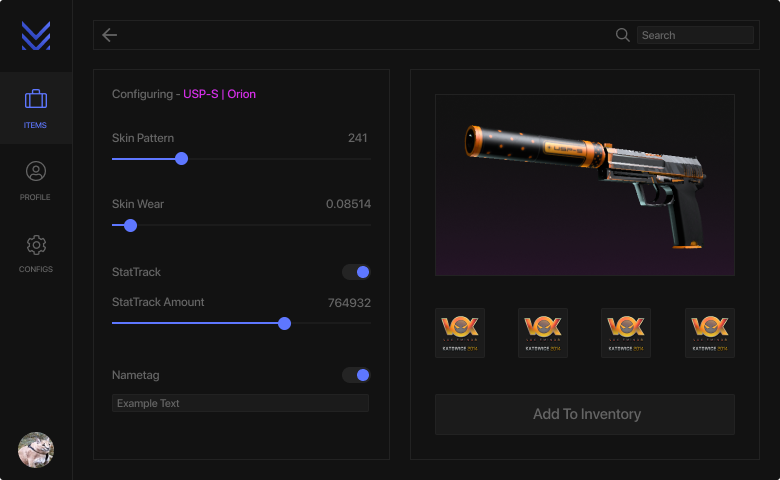
### Your skins are fully customizable
You can change everything about your skin. Change Skin Pattern, Skin Wear, Weapon StatTrak, Weapon Nametag, and Stickers.
* Ability to change Pattern, Wear, StatTrak, Nametag, and Stickers.
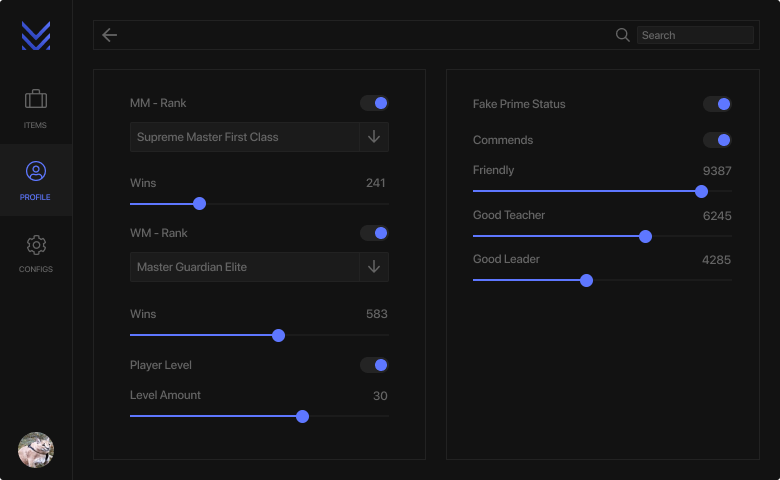
### Profile Changer and More Coming Soon
The software also includes a Profile Changer that lets you change your Rank, number of Wins, player Level, amount of Commends, and Prime Status.
# How do I use Mesa Changer?
1. Create an account at [https://mesachanger.com](https://mesachanger.com/forum/account/upgrades)
2. Redeem your key on here:
3. Download Mesa Changer on account page
4. Run and follow instructions in loader
# Common bugs & fixes
Troubleshooting\
\
Why is my game crashing at the CS:GO loading screen?\
To fix this issue please enable multicore rendering in CS:GO graphics settings.\
\
Why is the software not injecting after CS:GO is opened?\
If this happens for you, please open a support ticket and we will resolve your issue.\
\
Why is the software not working?\
To be able to use the program you need some stuff installed.\
\
Install: [Microsoft .NET framework](https://dotnet.microsoft.com/download/dotnet-framework)\
\
Install: [C++ Redistributable x86](https://aka.ms/vs/16/release/vc_redist.x86.exe) and [C++ Redistributable x64](https://aka.ms/vs/16/release/vc_redist.x64.exe)
# More Links
All Mesa Changer's Links
Website:
# Nixware
# What is Nixware?
## Features
Legitbot
* FOV
* Hitboxes
* Head
* Neck
* Chest
* Stomach
* Pelvis
* Smooth
* Shot delay
* Kill delay
* Lock target
* Lock mouse
* Draw FOV
* Disable when
* Smoke
* Flash
* Jump
\
Ragebot
* Aimbot
* FOV changer
* Hitscan
* Head
* Neck
* Chest
* Stomach
* Pelvis
* Head\Body point scale
* Minimal damage
* Hitchance
* Force shoot
* PSilent
* Antiaim
* Autoscope
* Autostop (between shots)
* Bunnyhop
* Auto strafer with smooth adjustment
* Accurate walk
\
ESP
* Box
* Glow
* Skeleton
* Footsteps
* Name
* Weapon name
* Health
* Health bar
* Ammo
* Chams
* Ragdoll chams
* Offscreen ESP
* Box
* Minimal and maximum radius customization
* Minimal and maximum size customization
World
* Bomb esp
* Timer
* Damage
* Name
* Weapons
* Icon
* Name
* Glow
* Grenades
* Color
* Trajectory
* Timer
* Grenade proximity warning
\
Skins
* Gloves
* Seed
* Paint kit
* Wear
* Knifes
* Seed
* Paint kit
* Wear
* Weapons
* Seed
* Paint kit
* Wear
Misc
* View Model Editor
* View Model Chams
* Hand chams
* Glove chams
* Sleeve chams
* Weapon chams
* Auto Accept
* Show player money
* Spectator list
* World modulation (world, clouds, sky, sun)
* Spread circle
* Taser\Knife range
* Hit marker\Hit effect
* Aspect ratio
* Third person
* Removals
* Flash
* Smoke
* Visual recoil
* Scope borders
* Zoom
* Sniper crosshair check
* Team intro
* First person legs
* Model occlusion
* Shadows
* Fog
* Decals
* Particles
* Water effect
* Lightning
# How do I use Nixware?
1. Make an account on
2. Open the "Purchase" tab and press on "Redeem code"
3. Insert the key you recieved in your gmail and press "Redeem code"
4. Go onto your "User Panel" and press "Download Loader"
5. Once you've downloaded the launcher, open it up and press on "Load"
6. When it says "Waiting for game", Start your game.
7. Enjoy.
### Video Instructions:
{% embed url="" %}
# Common bugs & fixes
### **Error: Hardware Mismatch**
Hardware Mismatch problem is encountered whenever components of your PC are not the same that were on the previous launch of the loader. To fix it you need to purchase HWID reset attempt here. There are NO free resets, creating a ticket about free reset will be ignored.
### **How to fix cheat injection issues?**
**First step** \
Delete the old loader and download it again. Try to inject.
**Second step** \
You need to have your time EXACTLY synchronized. Go here to check if it is. (edited)
If it is not - go to your Windows date and time settings, synchronize, check until it will be exact and try injecting again.
**Third step** \
If you have any antiviruses - DO NOT TURN THEM OFF, DELETE THEM COMPLETELY FROM YOUR PC. In Windows Defender just turn off Real-Time protection.
**Fourth step** \
Any anti-cheats like Riot Vanguard, or Faceit anti-cheat must be deleted from your pc in order to successfully inject the cheat.
### **Where do I put configs / scripts?**
Directory where you need to put your configs in: \[ Steam Folder ]\steamapps\common\Counter-Strike Global Offensive\nix
Directory where you need to put your lua scripts in: \[ Steam Folder ]\steamapps\common\Counter-Strike Global Offensive\nix\scripts
1. **Connection Error\[6]? Endless downloading?** **FIRST FIX** Check if your computer's time is synchronized on If it's not, then sync it, and then restart your PC and try again. There is documentation on the question "How to synchronize time?" on the Internet! **SECOND FIX (in case if first fix didn't help)** First of all, try moving the loader to a new folder. And then try doing this: Right-click on the loader and select Create Shortcut.
2. Then right-click on the shortcut, Properties, and in the field where the full link to the loader itself with the .exe postscript is, add --diagnostics (with two minuses) as on the photo. *Keep in mind, diagnostics method can read only english symbols, so if any folder in it's path has other language symbols, then it will give an error.*
3. After you run it, the following window will appear: Click «Continue».
4. Then you will have a choice of available servers:
5. Choose any one you like and click on the button with its name. After choosing, you will see a window like this:
6. Click - «No». And then you need to wait for the loader to start. After it starts, you need to try to inject. If the loader does not start, then try to just wait a little bit. If you have already started the loader before, then check the task manager, find the loader and close it, then try again through diagnostics. You can also run diagnostics with VPN.
### **Failed to load rendersystemdx11.dll?**
*This is a game error, search it up, nixware is not the reason for it.*
# More Links
Website:
Discord:
# Midnight
# What is Midnight?
Here is all the information you need to know about the product before buying it.
## **Information**
MIDNIGHT - Premium mod menu for CS2, CSGO, CS 1.6, Apex Legends, SCP:SL. Over 80000 satisfied customers for 6 years were convinced in the quality of our products. Our developers give you the opportunity to feel like a professional player. You can easily customize any features for your needs and comfort. Join us today and become a winner.
**Security**
We are providing top-level security for our products and always improving it to minimize any risks of detection
#### Stream Proof Visuals
Do you like to stream or record videos? With our cheat, you can make any content, while our cheat remains invisible
#### 24/7 Support
Our technical supports are ready to help you with any problems day and night
#### Cloud Technologies
We are using cloud-based technologies to give you the best experience with our products. All of your settings will be saved in the cloud and securely stored on our servers
{% embed url="" %}
# How do I use Midnight?
## Redeeming Your License
1. Visit the [Midnight Website](https://midnight.im/register/) and register an account.
2. Please wait for your account to be approved by an administrator, after approval check your email.
3. Go to [User CP](https://midnight.im/usercp/subscriptions/) and redeem your key.
### Install the Loader
1. Go to [User CP](https://midnight.im/usercp/subscriptions/) and click on download to download the loader.
2. Open the Midnight loader and login with your Midnight credentials.
3. Click on Start It Now and wait for loader to download the menu files.
4. Once the loader say "please start CSGO and fight" you can open CSGO and the menu will be injected automatically.
### Disable Your Antivirus
All menus will require you to turn off your antivirus. This is because it will flag a false positive from most anti-malware providers. Even though the menu doesn't affect your computer in a negative way, it affects the memory, which causes your antivirus to flag.
### Will Disabling It Give Me A Virus?
All of the products in our store are thoroughly tested to ensure that there are no viruses present. However, because your antivirus is disabled, you may be vulnerable to other suspicious downloads and links. Therefore, turning your antivirus back on any time you are not using the menu is recommended.
# More Links
All Midnight's Links
Midnight Website: \
\
Midnight Discord: [https://discord.gg/midnightim](https://discord.com/invite/midnightim)
# Neverlose
# What is Neverlose ?
Here is all the information you need to know about the product before buying it.
## **Information**
Unique software that provides great functionality and easy customization, with a fast and friendly support team.
#### Comfortable site
You can buy a subscription or reset your HWID directly from your account.
#### A lot of features
Our software is packed with cool features that will enhance your gaming experience!
#### Customizable visuals
You can easily customize the look of the game to suit your taste.
#### Responsive support
Our support team is always ready to answer all your questions and help you deal with any difficulties you may have.
#### Open to the community
Have any interesting idea? Bug report? Contact us!
#### Unique design
Our products have nice and user-friendly design. Easy to use for everyone.
{% embed url="" %}
# How do I use Neverlose?
## Redeeming Your License
1. Visit the [https://neverlose.lmarket.fr/
]() and register an account.
2. Go in account category
3. Go in activation key
### Install the Loader
1.
### Disable Your Antivirus
All menus will require you to turn off your antivirus. This is because it will flag a false positive from most anti-malware providers. Even though the menu doesn't affect your computer in a negative way, it affects the memory, which causes your antivirus to flag.
---
[Next Page](/llms-full.txt/1)


.gif?alt=media&token=91642ec4-4f98-4bb6-b2ab-a7f8d7a258e1)

